

Alerts and Triage
An alert means something changed about a package you already depend on. Not a package that exists somewhere in the world, but a version that appears in this workspace’s inventory, in a named project.
That is the difference between a feed and a queue. The Alerts page is meant to be worked through and emptied, and the controls on this page exist to keep it that way.
What Raises an Alert
Section titled “What Raises an Alert”- Vulnerability alerts are raised when an advisory affects a package version in your inventory. They carry the advisory identifier, its CVSS score, the affected version, the first patched version where one exists, and the projects exposed to it.
- License Change alerts are raised when a package changes its license between releases. When a new version first reports its license, ShieldedStack compares it with the nearest earlier version it already knows for that package, in the ecosystem’s own version order, and raises an alert if the two differ. Expressions that differ only in order or casing, such as
MIT OR Apache-2.0andApache-2.0 OR MIT, count as the same license. A license that changes on a version already in your inventory raises an alert too. The alert goes to every workspace using any version of the package, since those are the projects that would upgrade into the new terms, and shows the previous and the new license, so a move to a more restrictive license is caught while there is still time to react.
Inventory comes from the proxy and from the package scanner, so alerts cover what your builds actually pull, not a list of packages someone remembered to register.
The Life of an Alert
Section titled “The Life of an Alert”Working the Queue
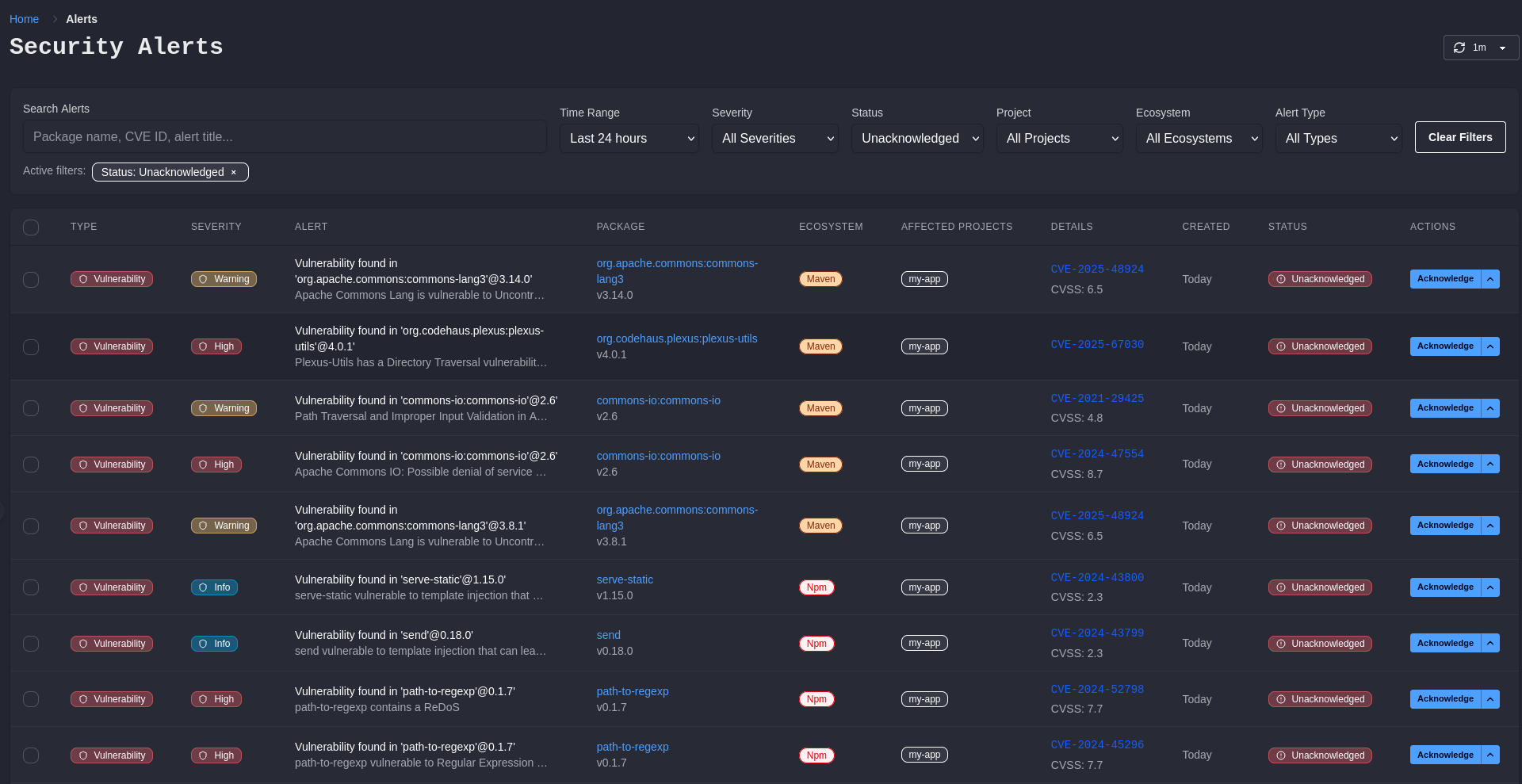
Section titled “Working the Queue”Filter by severity, status, alert type, project, and ecosystem, or search across package names, advisory identifiers, and alert titles. The Status filter defaults to unacknowledged, which is the working view. Set an auto-refresh interval while you are actively triaging an incident.
Open any alert for the full record: the description, the affected projects, the CVSS score, the first patched version, and remediation guidance including the upgrade command for that ecosystem.
Why This Alert Appeared
Section titled “Why This Alert Appeared”Each alert states what caused it to surface. This matters most for the alert you have seen before, because it tells you whether something genuinely changed or the cooldown simply expired.
| Reason | Meaning |
|---|---|
| Initial observation | The first time this advisory was seen against this package version. |
| Cooldown elapsed | The alert was raised again because the cooldown window has passed and the finding is still open. |
| Severity increased | The advisory was re-scored upward. The alert names the previous and current severity. |
| New project exposure | A project that was not previously affected has started using the version. |
| Project exposure reactivated | A project whose usage of the version was marked removed has installed it again. |
| Cooldown disabled | The workspace cooldown is set to 0, so every observation signals. |
An alert can carry more than one reason and lists all of them. Both exposure reasons are judged against the last alert raised for this advisory, not against everything ShieldedStack has ever seen, so “not previously affected” means not affected as of that alert.
Severity increased, New project exposure, and Project exposure reactivated are the three worth reading closely. Each means the situation is materially different from the last time you looked at it, and each raises an alert whether or not the cooldown has elapsed. Reactivation in particular is how a dependency you retired and then quietly reintroduced comes back to your attention. See Marking a Package as No Longer in Use.
Closing an Alert
Section titled “Closing an Alert”Acknowledge
Section titled “Acknowledge”Acknowledging records that a human looked at the alert and removes it from the working queue. It changes no policy: the package is still subject to the same blocking rules, and a genuinely new observation can raise the alert again.
Use it for findings you have triaged and are handling elsewhere, such as an upgrade already in a pull request.
When one package version carries several advisories, the acknowledge control offers Acknowledge all vulnerabilities for that exact package and version, which clears the whole cluster in one step instead of one row at a time.
Accept the Risk
Section titled “Accept the Risk”If you have reviewed a vulnerability and judged it acceptable for that version, accept the risk from the alert instead of acknowledging it. That records a vulnerability exception, which:
- resolves the current alert,
- stops future alerts for that advisory on that version, and
- excludes the advisory from the severity used for proxy blocking, so the version installs again.
An exception is narrow on purpose. It covers one advisory on one exact version in one workspace. A new advisory on the same package still alerts, and the same advisory on a different version still alerts.
Acknowledge or accept? Acknowledge says I have seen this. Accept the risk says I have judged this, and ShieldedStack should stop enforcing it here. Only the second one changes what the proxy does.
Review exceptions under Settings -> Vulnerability Exceptions, which lists what is active, who added it, when, and the reason given, and lets you revoke any of them. Revoked entries stay visible so the history of a decision survives the decision being reversed. Exceptions are never carried between workspaces, including by filter import and export.
Tuning the Noise
Section titled “Tuning the Noise”The Vulnerability Alert Cooldown on the Settings page sets how many days ShieldedStack waits before signalling the same advisory for the same package version again. It accepts 0 to 365 days.
The window runs from the last alert that was actually raised, not from the first time the advisory was seen. Any alert restarts it, whatever the reason. So if a 7 day cooldown is running and a severity increase raises an alert on day 3, the next Cooldown elapsed alert falls due on day 10 rather than day 7.
The cooldown suppresses repetition, not change. An alert is raised regardless of where the cooldown stands when the severity increased, when the version reached a project that was not affected before, or when a project whose usage was marked removed started using it again. Each of those says so in its reason, so a repeat alert always tells you whether something moved or the window simply expired.
A version with no current usage does not alert at all. Once every project’s usage of it is gone the advisory stays in the inventory but stops signalling, whatever the cooldown says. That happens either because the usage was marked removed or because no project has resolved the version through the proxy for a year, at which point ShieldedStack drops the usage record itself. See Marking a Package as No Longer in Use.
Picking a value:
- A cooldown of 0 signals on every observation. Useful when piping alerts into a system that does its own deduplication, noisy otherwise.
- A cooldown of 7 days is a reasonable default for a workspace with active triage.
- A longer cooldown of 30 days suits an inventory carrying long-lived accepted findings, where a weekly reminder is just friction.
If a specific finding is the one generating repeat noise, an exception is the right instrument, not a longer cooldown for everything.
Getting Alerts Out of the Portal
Section titled “Getting Alerts Out of the Portal”Configure Microsoft Teams, Slack, PagerDuty, or webhook delivery under Settings -> Notification Channels so alerts reach the teams that need them without anyone watching a dashboard. Each channel has its own severity threshold and category selection. See Notification Channels.
Triaging alerts requires the Triage alerts permission, or workspace admin rights. Adding vulnerability exceptions requires the Manage package policy permission, because it changes what the proxy enforces.