

Packages and Risk
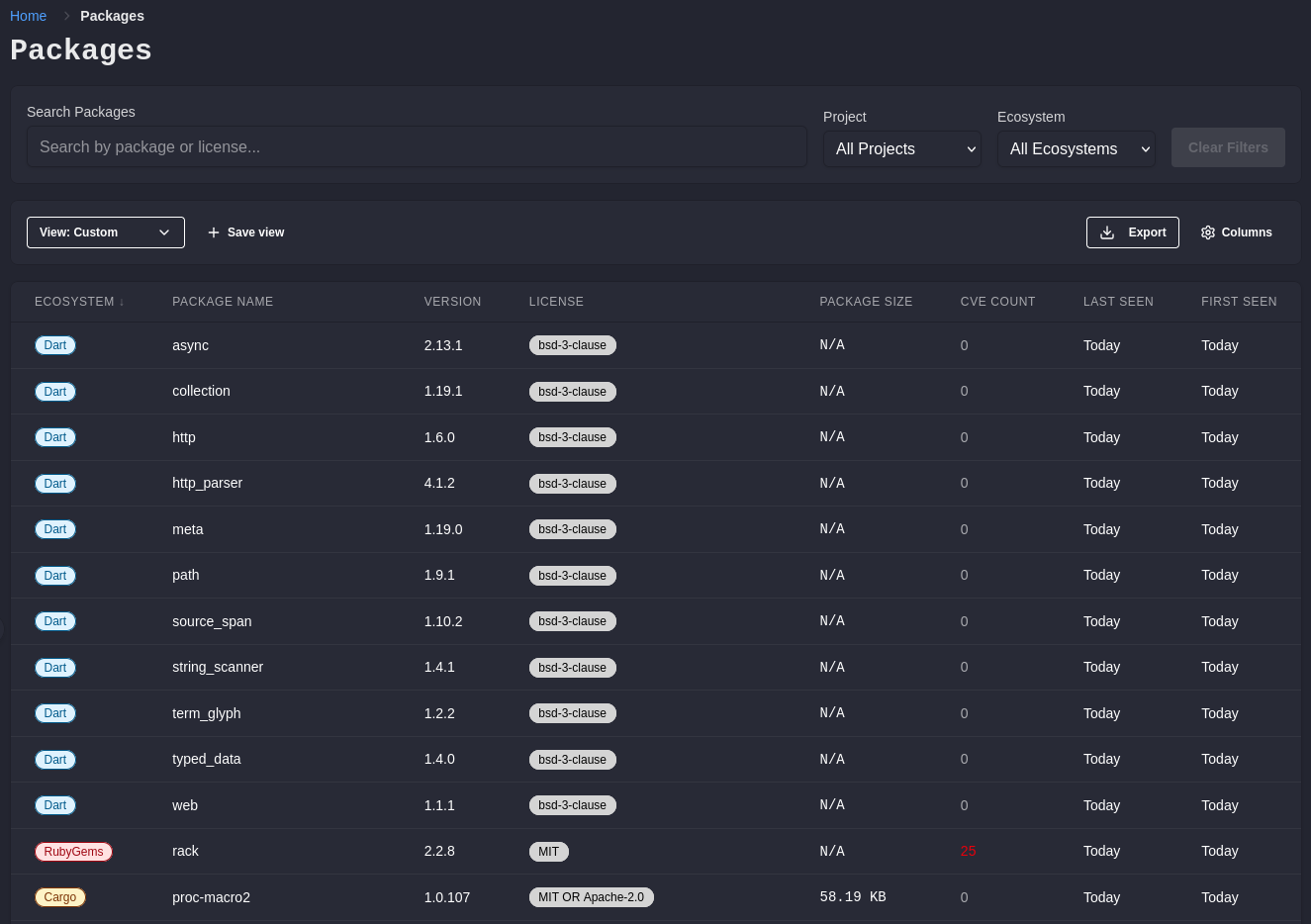
The Packages page is the inventory: every package version this workspace has pulled through the proxy or reported through the scanner, with what ShieldedStack knows about each one. It is where you go to answer “what are we actually running, and which parts of it should worry us”.
Finding Things
Section titled “Finding Things”Search matches on package name and license, and narrows as you type. Filters for project and ecosystem stack on top of it. Filters persist as you move around the console, so a project filter set on the inventory is still there when you come back.
The view picker above the table switches the columns and sort in one click, so the same inventory can be read four different ways:
| View | Shows | Sorted by |
|---|---|---|
| Default | A general-purpose inventory listing | Package name |
| High Risk | Risk score alongside its contributing signals | Risk score, worst first |
| Outdated | Version age and how far behind latest each package is | Publication date, oldest first |
| Security | Advisory counts and CVSS | Highest CVSS first |
| All | Every available column | Package name |
Columns adjusts which columns are shown, and a column selection you expect to reuse can be saved as a named view of your own. Export takes the current filters and columns out as CSV or JSON.
Risk Score
Section titled “Risk Score”Each package version carries a risk score from 0 to 10, where higher is worse, grouped into Low, Medium, High, and Critical bands. It is a triage aid: a single number that puts a long inventory into a defensible order when you cannot review all of it at once.
The number is the summary, not the argument. Hover any risk score to see the breakdown: for each dimension, the level it reached, the primary driver behind it, and the reasoning. A 7.8 driven by an unpatched critical advisory and a 7.8 driven by a package that has not shipped in four years are the same number and completely different problems, and the breakdown is what tells them apart.
The security dimension weighs the most urgent advisory affecting the version, how likely that advisory is to be exploited, and how many findings the version carries. Exploitability is read from EPSS wherever a published probability exists, and it only ever raises a score, so an advisory with no published probability is still scored on its severity. A version carrying many critical advisories ranks above one carrying a single advisory of the same severity.
Dimensions with no collected data do not contribute. A package with no OpenSSF Scorecard and no measurable version age is scored on what is known about it rather than on stand-in values, so an unremarkable package reads as unremarkable. A missing license is the exception and stays a compliance signal in its own right, because a package that cannot be license-cleared is a question you still have to answer.
Do not wire a build gate to the score. Blocking is what Minimum Package Block Level and package filters are for, and those are deterministic and explainable to whoever’s build just failed. See Policy and Enforcement.
Package Details
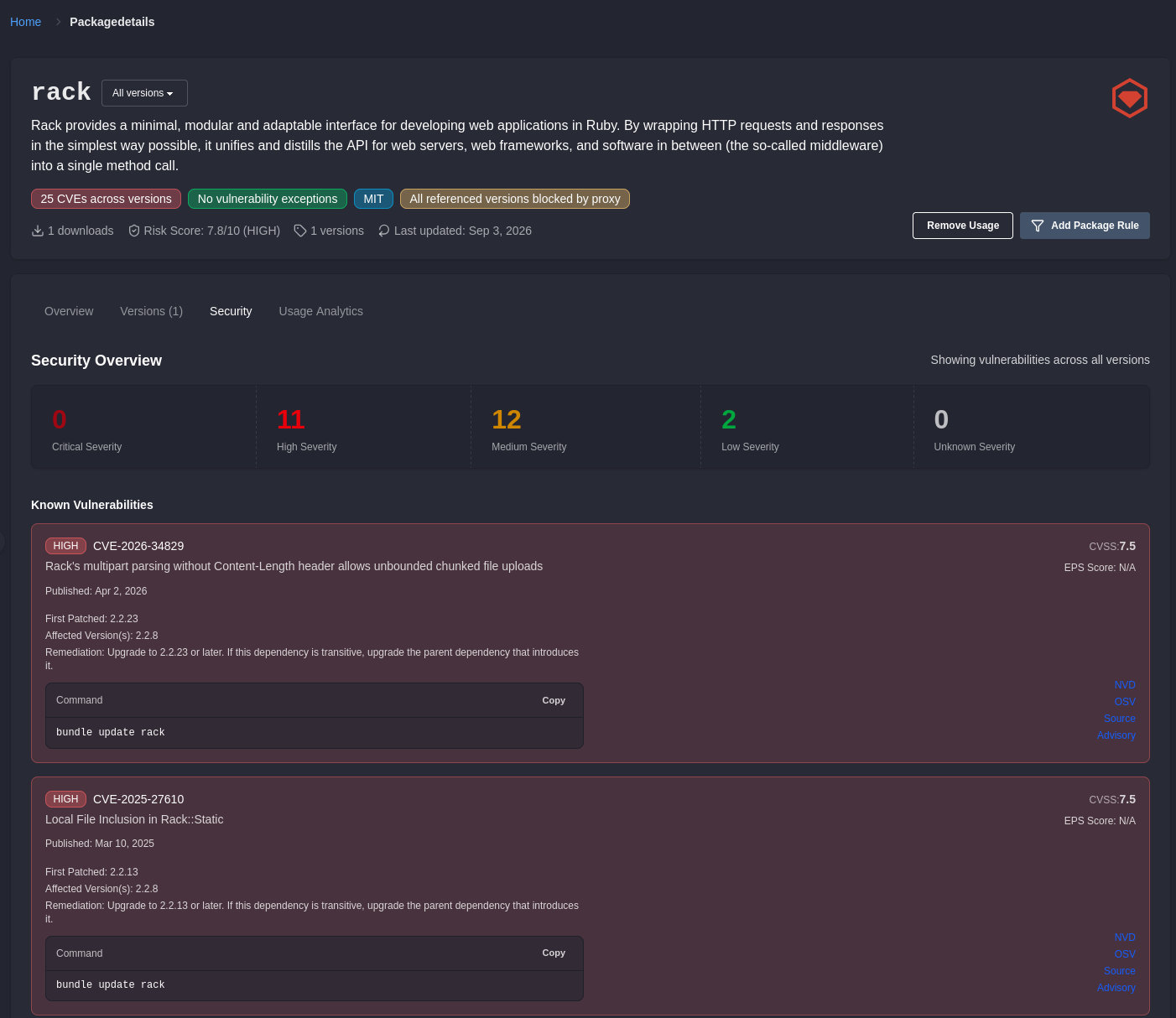
Section titled “Package Details”Selecting any package opens its detail page, with a version picker and four tabs.
- Overview summarises the package: current risk, license, publication dates, and the headline signals.
- Versions lists every version seen, with its advisory count and risk, so you can see whether the problem is the package or the specific version you pinned.
- Security lists the advisories affecting the selected version, with severity, description, and the first patched version. Vulnerability exceptions are added from here as well as from an alert.
- Usage shows which projects use the package and which versions they pull. This is the “who does an upgrade affect” tab.
Marking a Package as No Longer in Use
Section titled “Marking a Package as No Longer in Use”The inventory records what the proxy and the scanner have seen, which means it keeps describing a dependency after a project has stopped pulling it. A version that was dropped in a refactor last quarter still appears in the inventory, still counts toward reports, and still raises alerts when a new advisory lands against it.
Remove Usage on a package detail page settles that. The header button covers every version of the package, and the Remove usage action on each row of the Versions tab covers one version. Either way you choose whether it applies to all current projects or only selected ones, and can record a reason.
What it does and does not touch:
- The usage is hidden from the inventory, the focused views, request-derived reports, and SBOM and package exports.
- Package metadata, advisories, audit history, and historical download counts are kept. This is a scoping action, not a delete.
- It changes nothing about enforcement. The proxy still applies the same package filters and the same block level, so a removed package that gets installed again is subject to exactly the policy it was before.
It also stops the alerting, which is the part worth understanding before you use it at scale. Alerts are raised against current usage, so once every project’s usage of a version is marked removed, advisories on that version stop signalling entirely, whatever the cooldown is set to. That is the intended behaviour for a dependency you have genuinely retired, and a way to silence a finding you have not if you use it carelessly. For a package you still ship, an exception is the honest instrument, because it stays visible under Settings -> Vulnerability Exceptions with the reason and the person attached.
Removal holds only until the package comes back. If a project installs the version again through the proxy, the usage reappears in the inventory, and ShieldedStack treats the return as a new exposure rather than a continuation of the old one. That is what raises a Project exposure reactivated alert, and it is raised even if the cooldown for that advisory has not elapsed, so a dependency you retired and then quietly reintroduced does not slip back in unannounced.
Removing usage requires the Manage projects permission.
Usage Ages Out on Its Own
Section titled “Usage Ages Out on Its Own”A nightly maintenance job eventually deletes usage records that no longer describe anything current, on two separate clocks:
- A record you marked removed is deleted six months after the removal. The clock starts at the act, so the reason and the person who recorded it stay auditable for that whole window however quiet the package was beforehand.
- A record nobody marked is deleted twelve months after the project last resolved that version through the proxy. Every request refreshes the clock, so a dependency a build still pulls never ages out, however old the dependency itself is.
Those are the defaults and a deployment can change either one.
The consequence worth knowing is that a dependency you quietly stopped using leaves the inventory on its own after a year, and its advisories stop alerting when it does, for the same reason a marked removal stops them: there is no current usage left to raise an alert against. Remove Usage is how you reach that state deliberately and now, with a reason and a name attached, instead of waiting a year for it to happen silently.
Ageing out is also a real delete rather than the hiding Remove Usage does. Once the record is gone so is that project’s download count and first-seen date for the version, along with the removal reason if one was recorded. Package metadata, advisories and exceptions are untouched. A project that installs the version again afterwards starts a fresh record, and the return can still raise Project exposure reactivated, because that reason is judged against the last alert rather than against the deleted usage.
Focused Views
Section titled “Focused Views”Three pages narrow the inventory to one question each.
Risky Packages ranks the inventory by risk score. It is the starting point for a scheduled review when nothing is actively on fire.
Outdated Packages surfaces versions that lag behind current upstream releases, including deprecated ones. Age is a leading indicator: dependencies that fall far enough behind become expensive to patch in the moment you most need to patch them.
CVEs, titled Security Advisories, is the advisory-centric view of the same data. Where the Packages page asks “which of our packages are affected”, this page asks “which advisories affect us, and what do they touch”. Search across package name, advisory identifier, and summary, and filter by project and ecosystem. Use it when a disclosure hits the news and you need to know within a minute whether it reaches you.
Licenses
Section titled “Licenses”The Licenses page inventories the licenses in use across the workspace, with a risk classification of High, Medium, Low, or Unknown, the license type, and the projects each one appears in. Filter by project, license type, or risk.
Two things make it worth checking regularly rather than at audit time:
- Unknown is a finding, not a gap in the display. A dependency whose license could not be determined is one you cannot make a compliance statement about.
- A license that changes between versions raises a License Change alert, so a routine upgrade that quietly moves a dependency to a more restrictive license gets caught while the upgrade is still reversible.
For an inventory to hand to legal or a customer, use Exports and SBOM rather than copying from the table.